Easter Sale: 15% off & free shipping in United States over $89 USD ![]()
Manual Wave in-ear monitors
Understand every detail.
Read this first
The Metronome by Soundbrenner combines a metronome, practice tracker, and tuner in one app.
When you use a Soundbrenner wearable, always connect it from inside The Metronome app. Do not pair it in your phone’s Bluetooth settings first unless a specific troubleshooting step tells you to do so.
To learn more about the app and to download it for free, visit the app’s product page.
The best way to get started
This video is the ultimate crash course to learn everything you need to know about how to use the Wave in-ear monitors in the shortest time possible.
First steps
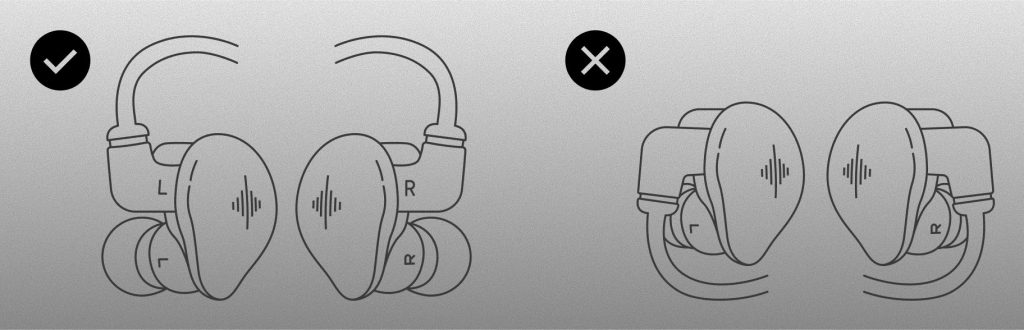
Connect the cable to the earphones. Both sides feature the marking “L” for left and “R” for right, so make sure you match the correct sides with each other.
Also make sure the cable is pointing upward, as shown in the illustration.
Try all included ear tip types and sizes to find your ideal fit and sound.
If the sound feels thin, weak in bass, or the isolation is poor, the seal is usually incomplete. A proper seal has a major effect on bass response, passive isolation, and comfort.
Silicone
Silicone is durable and easy to use.
Foam
Provides up to 36 dB of passive noise isolation. Compress before insertion and allow the tip to expand in your ear.
After selecting your preferred ear tips, route the cable over your ears from behind before inserting the earphones. Happy listening!
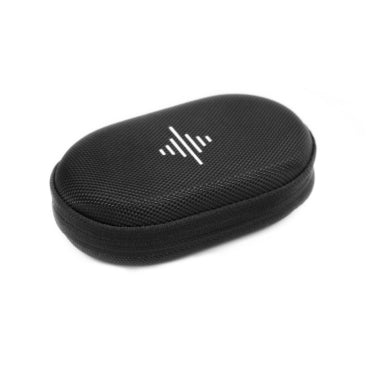
In the box
Ableton Link
Ableton Link lets you synchronize the Soundbrenner metronome with Ableton Live and other Link-enabled apps. For example, a band can run the app on multiple phones to share a synchronized audio click, you can sync your Soundbrenner wearable with Ableton Live on a desktop computer, or connect the app to another Link-enabled app on the same device so both share tempo and stay in sync.
Link-enabled apps and devices on the same Wi-Fi network connect automatically and remain in time with each other. Any participant can start or stop independently, change the tempo for everyone, and join or leave a session without disrupting synchronization.
To use Ableton Link, open The Metronome app settings and enable Ableton Link. To sync with another app on the same device, enable Link in both apps. To sync with another device, ensure both devices are on the same Wi-Fi network with Ableton Link activated. Synchronization starts automatically, and the Ableton Link settings in the app will display connection indicators.
When using a Soundbrenner wearable with Ableton Link, the wearable follows The Metronome app. In a typical setup, Ableton Live syncs with the app, and the app then controls the wearable.
Tech specs
Driver system
Dual-driver hybrid array
Bass driver
10mm dual-magnet dynamic
Treble driver
Balanced armature tweeter
FAQs
If your Plus subscription is not recognized in the app, you can restore it manually. Open the app and go to "Settings" → "User Profile" → "Subscription". On the subscription screen, scroll down and tap "Restore Purchase". The app will check whether the Apple ID or Google Play account currently logged in has an active subscription and, if so, activate Soundbrenner Plus on your current Soundbrenner account.
Far far away, behind the word mountains, far from the countries Vokalia and Consonantia, there live the blind texts. Separated they live in Bookmarksgrove right at the coast